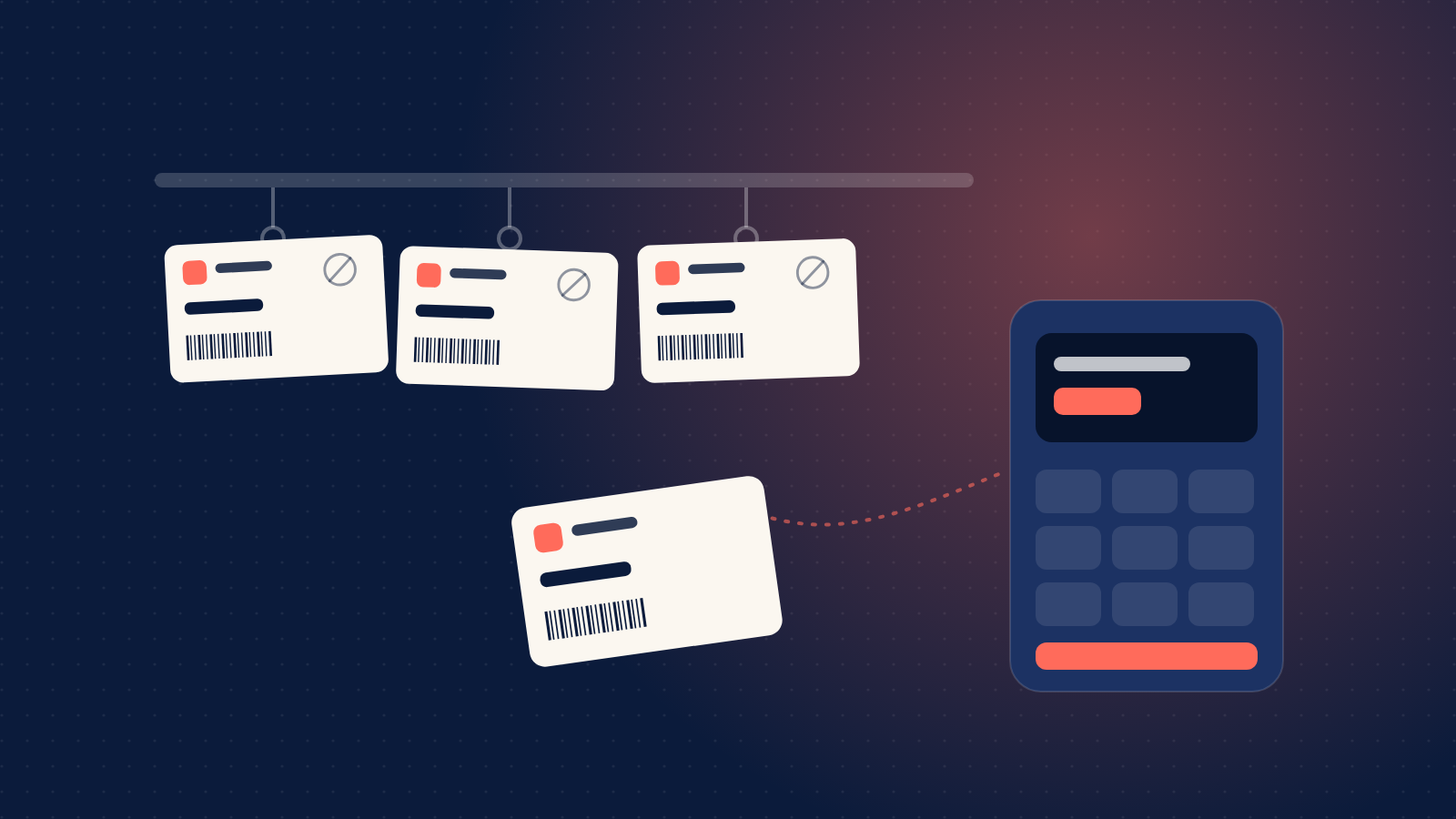
Most stores already have an Android POS device on the counter. Many of them have a barcode scanner built in. So when we built a dedicated till for redeeming AfroPin PINs, we built it to run on those devices, not on new hardware.
AfroPin Terminal is an Android app for brand tills. It does what our web till does, with a screen designed for speed at a busy counter.
Scan, enter the amount, confirm
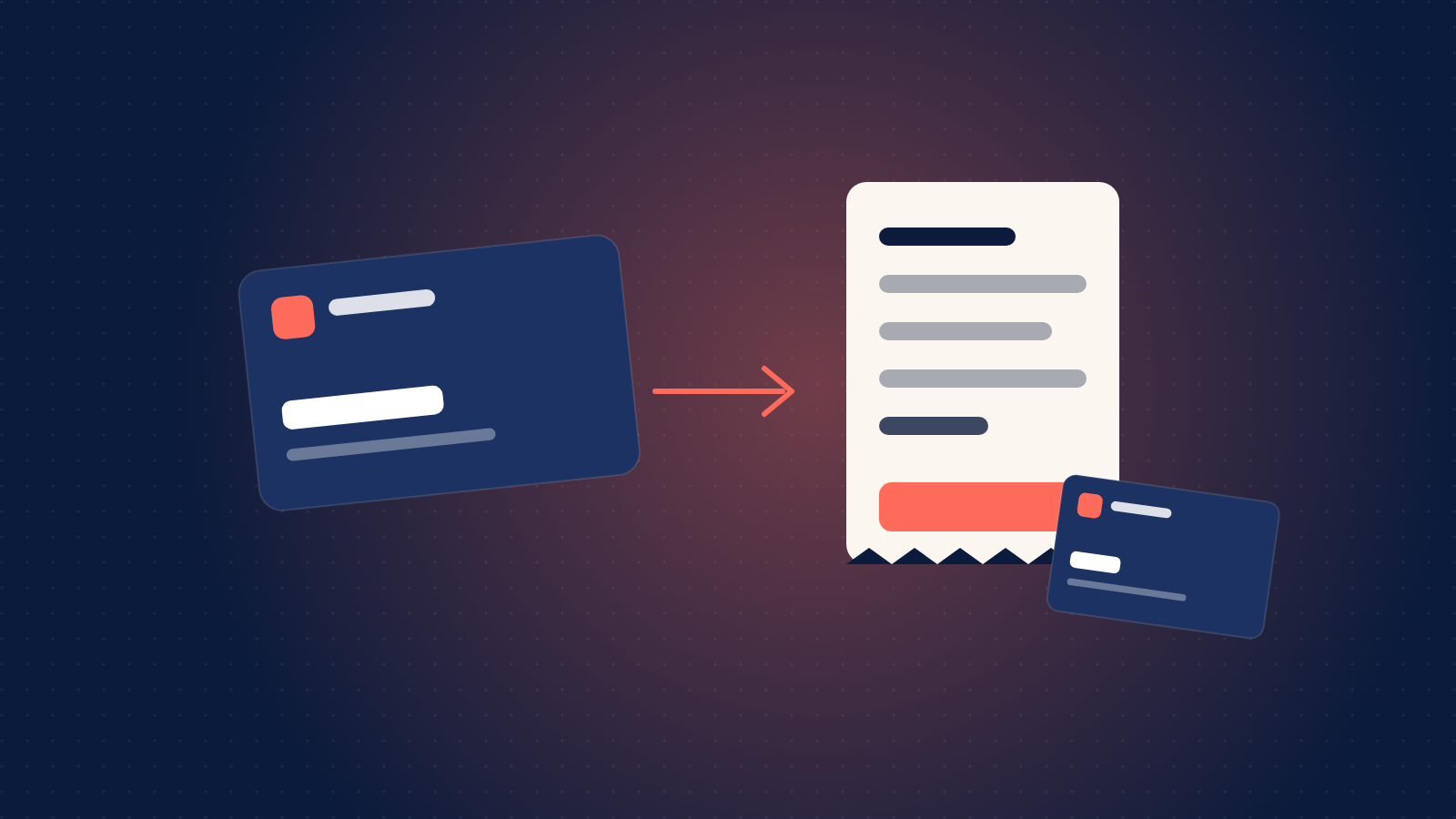
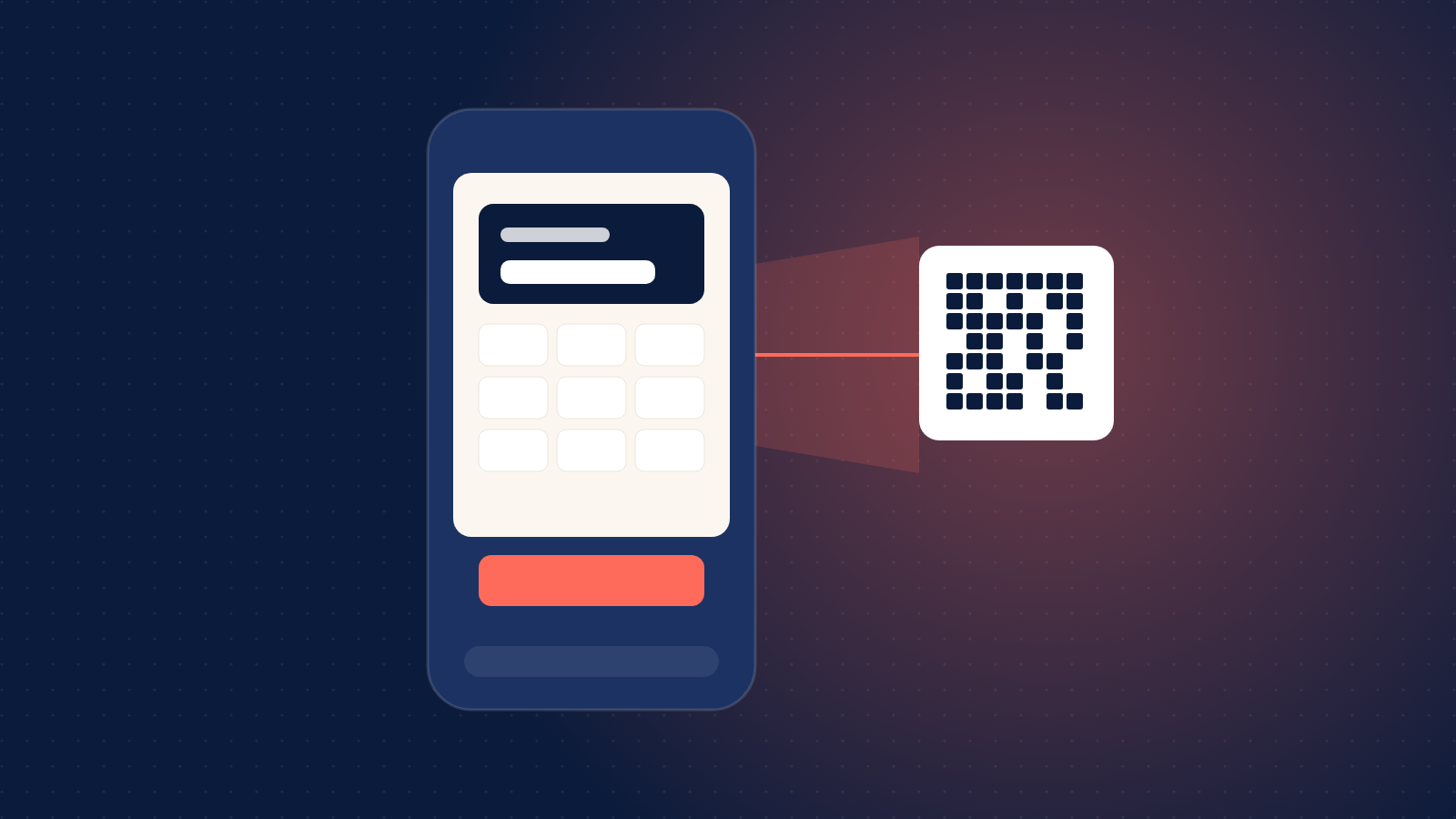
Every PIN we email to a customer now comes with a QR code. At the till, staff scan it, and the app looks the PIN up straight away: the product, the balance and whether it can be used. They enter the amount, see the fee and the totals, and confirm. The receipt shows the new balance and, for products that issue a new code after a part payment, only the new code's mask. The full new code goes to the customer by email.
There are three ways to get a PIN in:
- The built-in scanner on Sunmi, Urovo, Newland, iData and Chainway devices works out of the box. Other scanners can be set to send their results to the app, or to type the code like a keyboard.
- The camera, for devices without a scanner.
- The keypad, if a customer reads out their code. The lookup starts as soon as the sixteenth digit is in.
Built for real counters
- Dropped connections are safe. If the network fails mid-redemption, staff tap Try again. If the first attempt went through, the app gets the original receipt back; a PIN is never charged twice.
- Staff never see full codes. Codes are masked everywhere on the till.
- Signing in is per till. Each terminal has its own login ID and password, and devices stay signed in for a shift. Resetting a terminal's password, or disabling it, signs the device out at once.
- Updates arrive in the app. When a new version is published, the till shows an update banner. If an update is ever required, the app waits until the current customer has been served.
Getting it
Brands can download AfroPin Terminal from the Terminals page of any store in their dashboard. The page has a download link and a QR code, so you can open it straight from the POS device. Staff sign in with the terminal's login ID and password, the same ones they use for the web till.
Step-by-step instructions, including scanner set-up, are in the Terminal app section of our Help Center.